Tech Setup
Get your I4T email configured on any device and install the Insurance4Truckers mobile app — complete this before your first day working leads.
Server Settings (Quick Reference)
Use these settings in any email client. Your username is your full email address (e.g. [email protected]).
Incoming Mail (IMAP)
For receiving & reading email
| Server | smtp.insurance4truck.com |
| Port | 993 |
| Security | TLS / SSL |
| Username | |
| Password | Your email password |
Outgoing Mail (SMTP)
For sending email
| Server | smtp.insurance4truck.com |
| Port | 587 |
| Security | STARTTLS |
| Auth Required | Yes |
| Username |
Webmail
Webmail access is currently unavailable. Use one of the email client setups below (iPhone, Android, or Outlook) to access your @insurance4truck.com email.
iPhone / iPad Setup
Follow these steps to add your email to the built-in Mail app on iPhone or iPad.
Open Settings
Tap the grey Settings icon on your home screen.
Go to Mail
Scroll down and tap Mail → Accounts → Add Account.
Choose 'Other'
Tap Other at the bottom of the list (not Gmail, Yahoo, etc.).
Add Mail Account
Tap Add Mail Account. Enter your Name, Email ([email protected]), Password, and a Description (e.g. 'I4T Email').
Select IMAP
Make sure IMAP is selected at the top (not POP).
Incoming Mail Server
Host Name: smtp.insurance4truck.com | Port: 993 | SSL: On | Username: [email protected] | Password: your password
Outgoing Mail Server
Host Name: smtp.insurance4truck.com | Port: 587 | SSL: Off (use STARTTLS) | Username: [email protected] | Password: your password
Tap Next & Save
iOS will verify the settings. If it connects successfully, tap Save. Your email will now appear in the Mail app.
Android Email Setup
Steps for the Gmail app or the built-in Android Email app.
Open Gmail App
Open the Gmail app. Tap your profile picture in the top right, then tap 'Add another account'.
Choose 'Other'
Scroll to the bottom and tap Other.
Enter Your Email
Type your full email address: [email protected]. Tap Next.
Select IMAP
Choose IMAP as the account type.
Incoming Settings
Username: [email protected] | Password: your password | Server: smtp.insurance4truck.com | Port: 993 | Security: SSL/TLS
Outgoing Settings
SMTP Server: smtp.insurance4truck.com | Port: 587 | Security: STARTTLS | Require sign-in: Yes | Username & Password: same as above
Finish Setup
Tap Next. Gmail will verify the connection. Give the account a name and tap Done. Your email is now set up.
Microsoft Outlook (Desktop)
For Outlook 2016, 2019, 2021, or Microsoft 365 on Windows or Mac.
Open Outlook
Go to File → Add Account (or Info → Add Account).
Enter Your Email
Type [email protected] and click Connect.
Select IMAP
If prompted to choose account type, select IMAP.
Incoming Mail Settings
Server: smtp.insurance4truck.com | Port: 993 | Encryption: SSL/TLS
Outgoing Mail Settings
Server: smtp.insurance4truck.com | Port: 587 | Encryption: STARTTLS
Enter Password
Enter your email password when prompted. Check 'Remember password'.
Click Done
Outlook will test the connection. If successful, click Done. Your inbox will appear in the left panel.
Email Troubleshooting
⚠ Can't connect / authentication failed
Double-check your username is the full email address (not just the part before @). Re-enter your password carefully — passwords are case-sensitive.
⚠ Emails sending but not receiving (or vice versa)
Verify the IMAP port is 993 with SSL, and SMTP port is 587 with STARTTLS. These must not be swapped.
⚠ Certificate error or security warning
Make sure SSL/TLS is enabled for incoming (port 993) and STARTTLS for outgoing (port 587). Do not use port 25.
⚠ Password forgotten
Contact your I4T admin to reset your email password. Do not attempt to reset it yourself through the carrier portal.
Need help setting up your email? Contact your I4T admin at [email protected] or call (888) 711-6003.
Insurance4Truckers
by INSURANCE4TRUCKERS LLC
Beta — TestFlightiOS Device Requirements
You must have the TestFlight app installed on your device before you can install Insurance4Truckers. TestFlight is free and available on the App Store.
| Device | Minimum OS Required |
|---|---|
| iPhone / iPad | iOS 14.0 or later |
| Mac | macOS 12.0 (Monterey) or later |
| Apple TV | tvOS 14.0 or later |
| Apple Vision Pro | visionOS 1.0 or later |
How to Install (iOS)
Install TestFlight
Download the free TestFlight app from the App Store on your iPhone, iPad, or Mac.
Get TestFlight on the App StoreOpen the Invite Link
Tap the button below to open the Insurance4Truckers TestFlight invite. You must have TestFlight installed first.
Open TestFlight InviteAccept & Install
TestFlight will open automatically. Tap 'Accept' on the invite, then tap 'Install' to download the app.
Open the App
Once installed, tap 'Open' in TestFlight or find the Insurance4Truckers icon on your home screen.
Updates
TestFlight will notify you when a new version is available. Tap 'Update' to stay on the latest build.
Android App Install
Scan the QR code below with your Android camera to install the Insurance4Truckers app directly on your device.
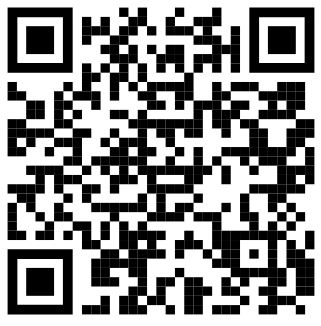
Scan to Install
Open your Android camera app and point it at the QR code. Tap the link that appears to download and install the app.
Open your Android camera app
Point it at the QR code above
Tap the install link that appears
Follow the on-screen prompts to install
Important App Notes
This is a beta version of the app distributed through Apple's TestFlight program. You may encounter occasional bugs — please report them to your I4T admin.
The TestFlight invite link is for I4T agents only. Do not share this link publicly.
TestFlight beta apps expire after 90 days. If the app stops working, check TestFlight for an updated build or contact your admin.