SOPs & Workflows
OneDrive folder structure, Hughes submission process, and CRM lead stages.
OneDrive Folder Structure
Each client gets their own folder in OneDrive. Upload all documents as soon as you receive them.
CRM Lead Stages
Lead just entered the system. Add to your Tracker immediately to secure it under your name.
You have tried to reach the lead but have not made contact yet. Log every attempt.
You have spoken with or messaged the lead. Update notes with what was discussed.
You are actively gathering information and submitting quotes.
Quote has been presented to the client. Follow up regularly.
Policy bound. Create a customer profile with carrier, policy #, and premium. Upload all docs.
Client went with another carrier or agent. Note the reason.
Lead is not ready now but may be in the future. Set a follow-up date.
Hughes Submission Process (Secondary Markets)
Gather all required documents: MVRs for all drivers, last 3 years of Loss Runs, IFTA for last 4 quarters, signed application, current COI.
Email Mike Hughes at [email protected] with the client's full name, DOT#, and a summary of their situation.
Attach all documents to the email. Make sure business name matches EXACTLY how it appears on FMCSA.
Mike will respond with market options. Be prepared for several follow-up questions — respond quickly.
Keep the client informed throughout the process. Secondary markets can take 3–10 days.
Once a quote is received, present to the client and follow the standard binding process.
How to Download a Certificate of Insurance (COI)
Learn how to download a Certificate of Insurance (COI) from the insurance CRM. This guide walks you through the steps to access and retrieve the COI document.
Navigate to the Customers page
Go to crm.insurance4truck.com/customers. In the left sidebar, click Customers to see the full customer list. Each row shows the customer's Name, DOT#, Contact info, and Agent.
Open Customers Page →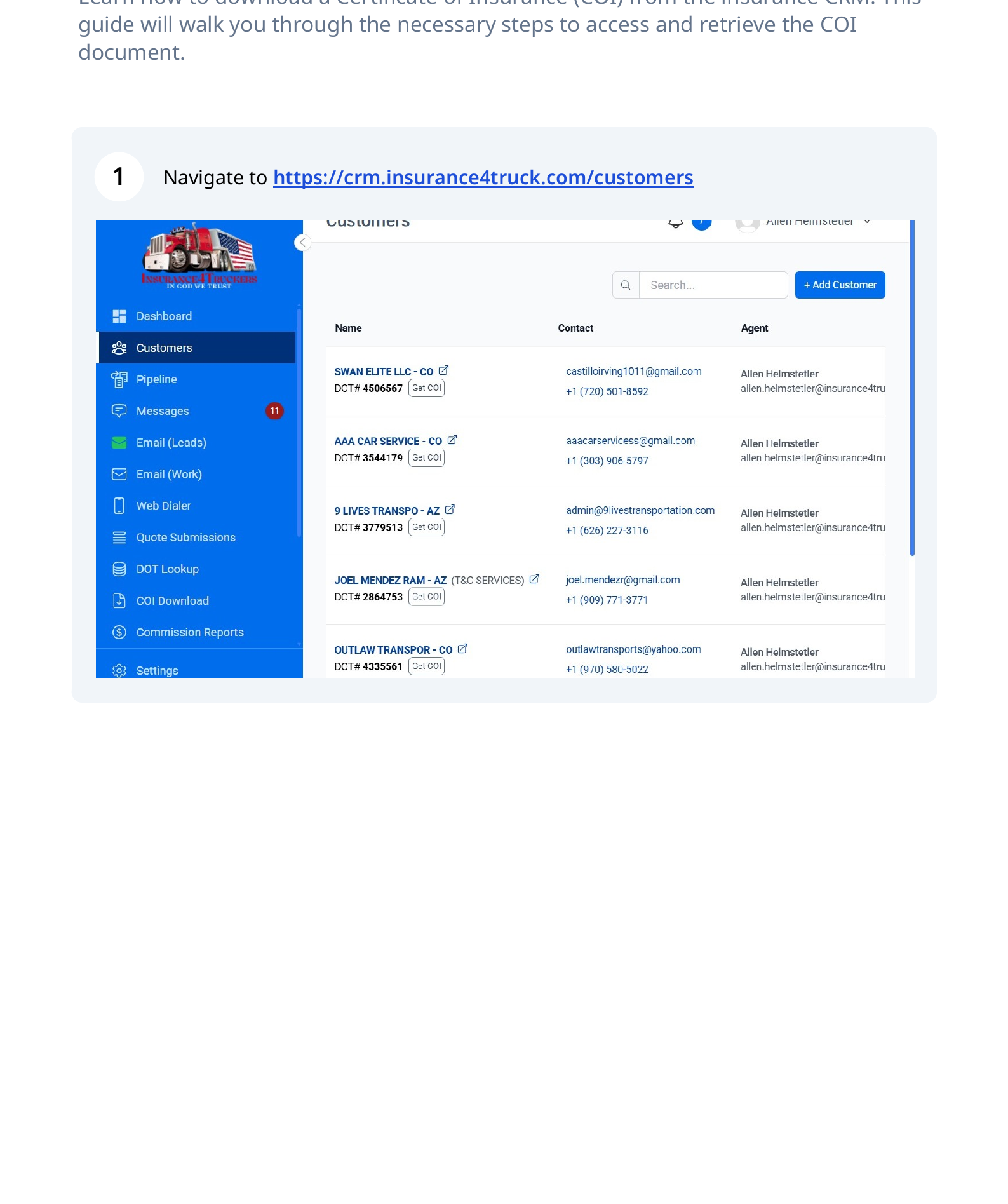
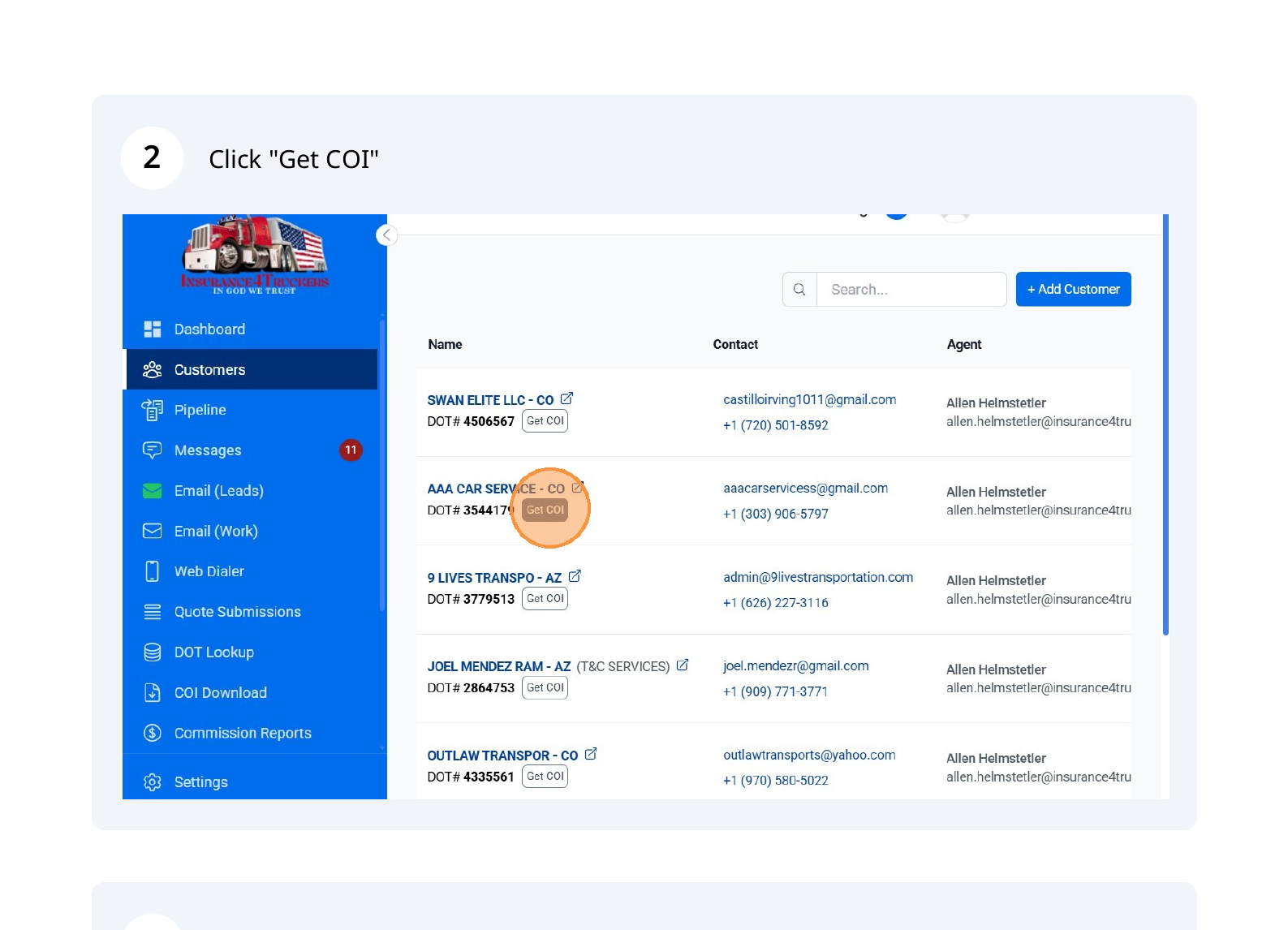
Click "Get COI"
Find the customer you need a COI for, then click the Get COI button next to their DOT number.
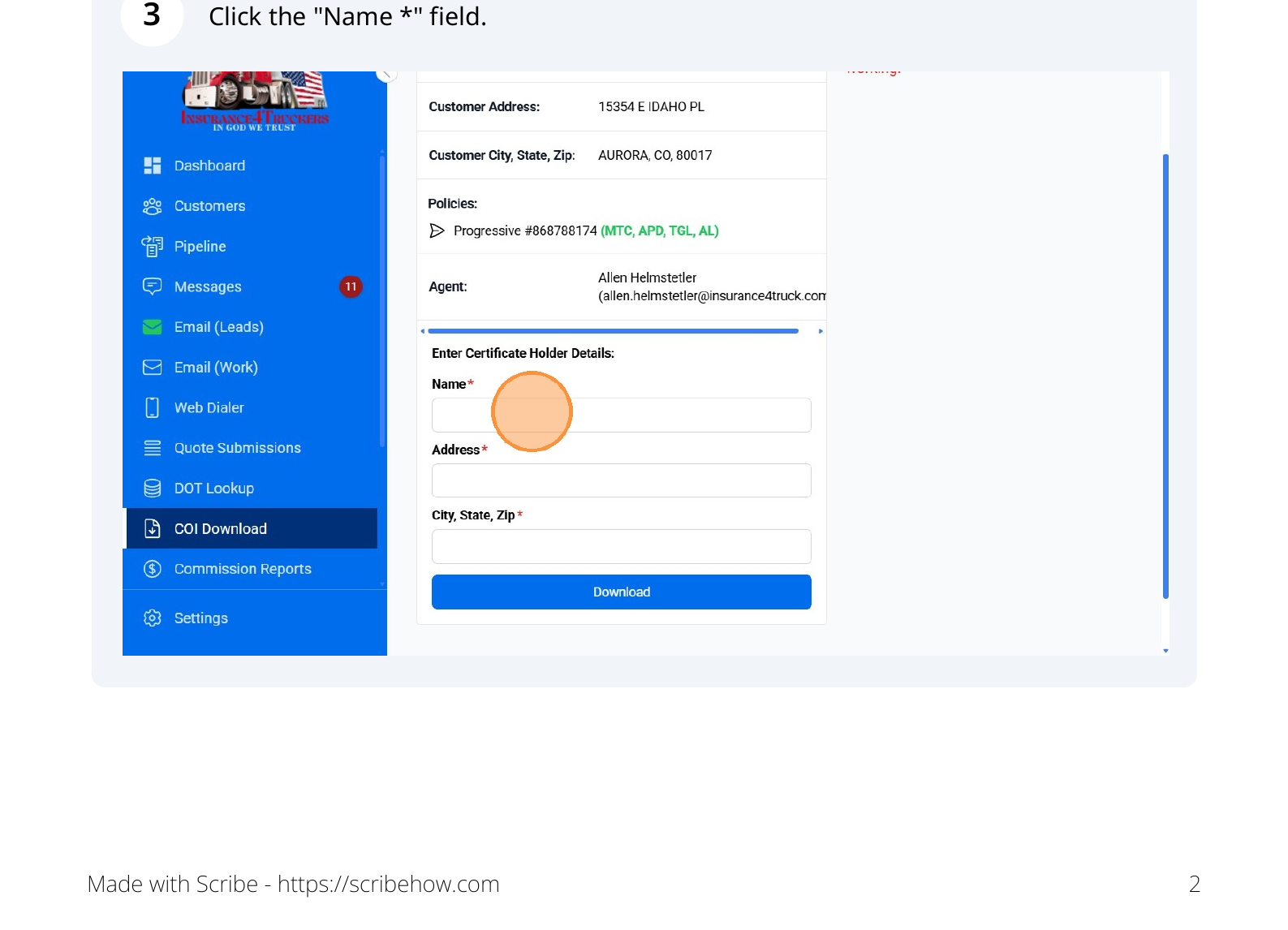
Fill in the Certificate Holder Details
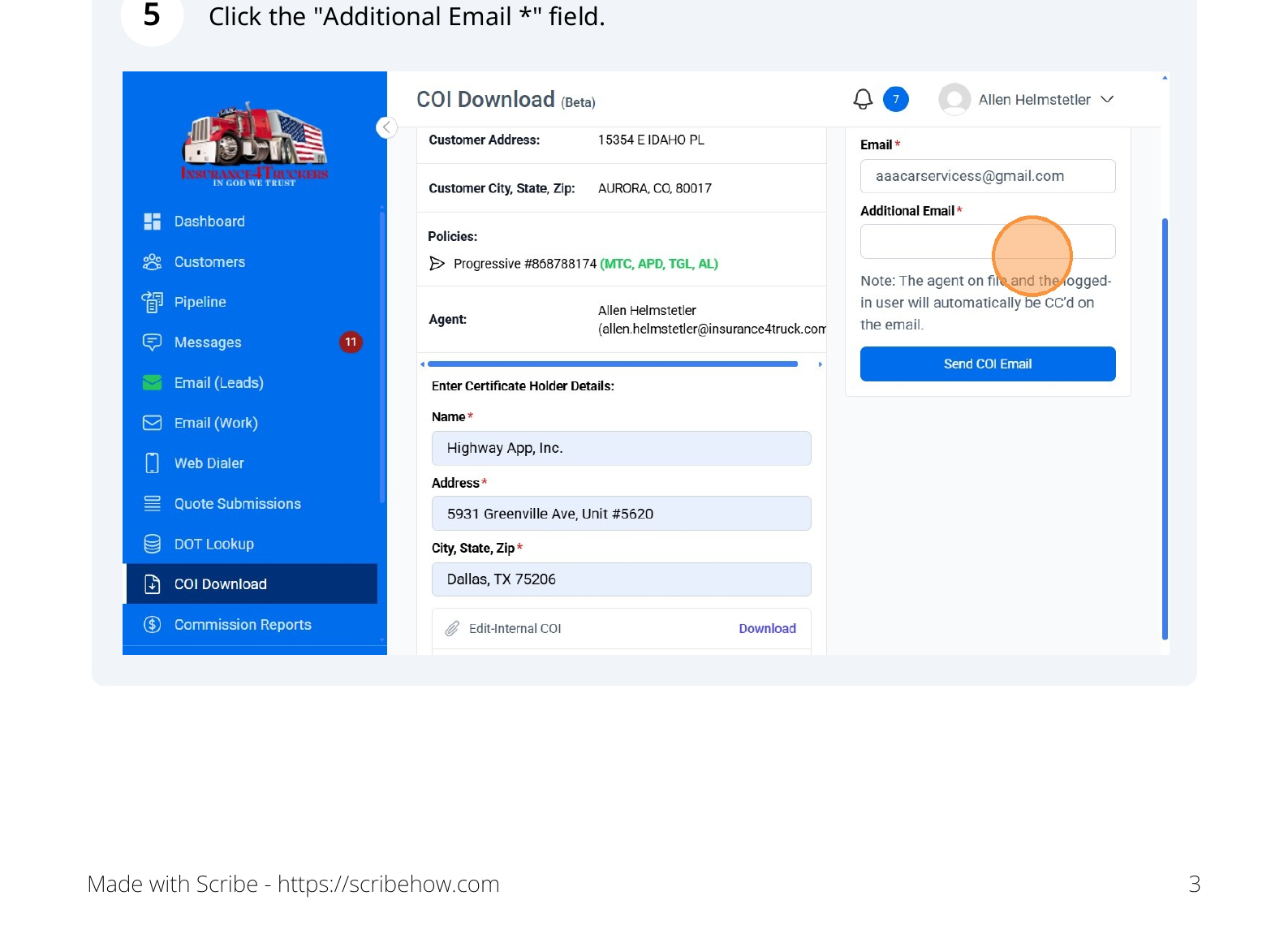
A panel will open on the right showing the customer's address, policies, and agent. Under Enter Certificate Holder Details, fill in: Name*, Address*, and City, State, Zip*.
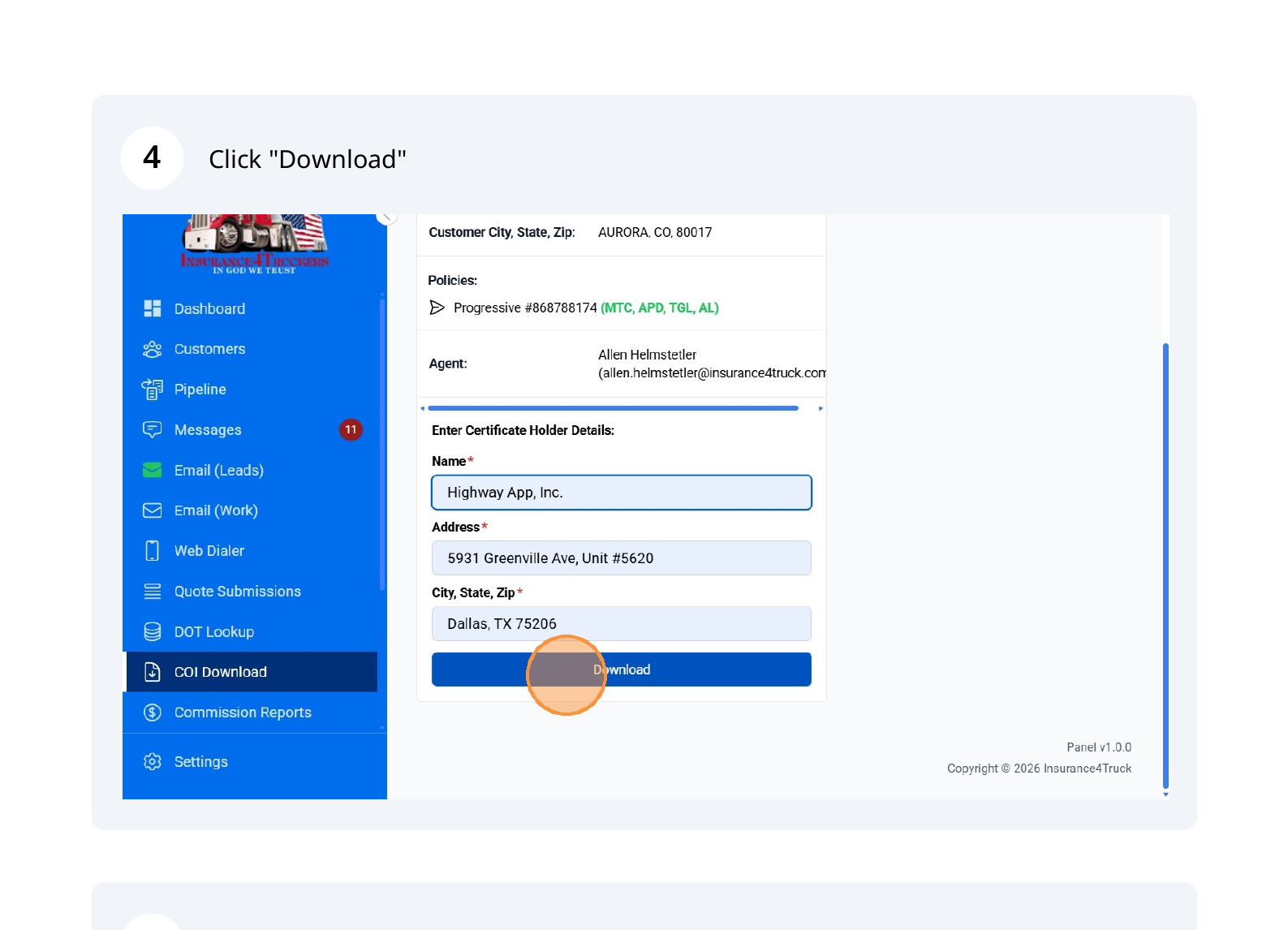
Click "Download"
Click the blue Download button to generate and download the COI PDF. The document will include the customer's policy information and the certificate holder details you entered.
(Optional) Send COI via Email
After downloading, you can also email the COI directly. Enter the recipient's email in the Additional Email* field, then click Send COI Email. The agent on file and the logged-in user will automatically be CC'd. You can also click Edit-Internal COI to make edits before sending.
DOT Lookup & Lead Tags
You can quickly look up the lead DOT from the text messages screen in the CRM. Use the DOT# to get more info via the SAFER FMCSA tool.
Tags will give you an indication of what is going on with a lead:
Brand new trucking company. May be more difficult to place — lower priority for secondary markets.
Policy is up for renewal. Ask if their current carrier gave a renewal quote.
Policy is being cancelled. Ask why — invite them to complain about their current agent.
Client has requested loss runs. Follow up to ensure they were received.